
Start / stop OctoPrint docker with the 3D printer
This setup starts and stops an OctoPrint container automatically when the 3D printer is plugged in or unplugged. It uses udev rules to detect the USB device and a Docker container named octoprint.
The idea is simple:
- When the printer is connected, the container starts.
- When the printer is disconnected, the container stops.
- A stable device symlink is created for the printer inside Docker.
This is useful when you only want OctoPrint running while the printer is actually present.
OctoPrint Docker Setup
First, make sure OctoPrint runs in Docker and that the printer device is exposed to the container.
A typical Docker setup looks like this:
services:
  octoprint:
    # You should not use :latest as it may cause problems on update with your data
    # prefer updating within the UI, and then update the version here
    image: octoprint/octoprint:1.10
    container_name: octoprint
    restart: unless-stopped
    ports:
      - 5000:80
    devices:
      - /dev/ttyUSB0:/dev/ttyUSB0
      - /dev/video0:/dev/video0
    volumes:
      - ./config:/octoprint
      - ./data:/octoprint/data
The important part is the device mapping:
/dev/ttyUSB0is the device name for the printer USB port/dev/video0is the device name for the camera USB port ; remove it if you don’t need it
You can adapt the internal device path if your OctoPrint configuration expects something else.
Rules udev on host
Create the file /etc/udev/rules.d/90-docker-octoprint.rules with the following content:
# This is the Creality Ender 3v2 printer mapped into the Octoprint container
SUBSYSTEM=="tty", ATTRS{idVendor}=="1a86", ATTRS{idProduct}=="7523", ACTION=="add",  SYMLINK+="docker/ender"
SUBSYSTEM=="tty", ATTRS{idVendor}=="1a86", ATTRS{idProduct}=="7523", ACTION=="add",  RUN+="/usr/bin/docker start octoprint"
SUBSYSTEM=="tty", ATTRS{idVendor}=="1a86", ATTRS{idProduct}=="7523", ACTION=="remove", RUN+="/usr/bin/docker stop octoprint"
The USB identifiers here match the common CH340-based adapter used by the Creality Ender 3 V2. You may need to change this according to your printer (use lsusb to see the vendor:product identifiers)
This rule does three things:
- Creates
/dev/docker/enderwhen the printer is detected. - Starts the Docker container on plug-in.
- Stops the Docker container on unplug.
After adding the rule, reload udev with systemctl restart udev, then reconnect the printer to test the rule.
If something does not work, enable debug logging and watch the journal: udevadm control --log-priority=debug && journalctl -f ; plug and unplug the printer while watching the logs. This usually helps confirm whether the device is detected and whether the Docker commands are triggered.
Proxmox USB hotplug setup
You can use Proxmox USB device mapping to pass the printer and camera USB. Once the VM is launched, and if you have defined USB as hotplug, it will work as expected. But doing so requires that the USB devices exist to start the VM, else the VM will fail to start. In my case this is very annoying.
The solution is to use a hook script. I have used this script already in a few articles as it is very useful in this article to pass USB-IP devices and in this article to add a VNC password after the VM startup ; here is the script to be created in the snippets folder with executable flag (chmod +x), create the file /var/lib/vz/snippets/hook-hotplug.sh with the following contents:
#!/bin/bash

# From Perplexity: hook script pour proxmox qui ajoute dans le qm monitor
# après le démarrage le contenu du fichier à .hotplug.conf
# à coté du fichier de configuration de la VM

# Installation
# - chmod +x
# - copy dans /var/lib/vz/snippets
# - ajouter dans la VM avec: qm set <VMID> --hookscript local:snippets/hook-hotplug.sh

# Variables transmises par Proxmox à chaque appel hook
VMID="$1"
PHASE="$2"

# Chemin du fichier de hotplug à appliquer si présent
HOTPLUG_CONF="/etc/pve/qemu-server/${VMID}.hotplug.conf"

# Lancement après démarrage effectif
if [ "$PHASE" = "post-start" ] && [ -f "$HOTPLUG_CONF" ]; then
    # Lire chaque ligne et l’injecter dans le monitor QEMU de la VM
    while IFS= read -r line; do
        # On ignore les lignes vides ou commentaires (#)
        [[ "$line" =~ ^#.*$ || -z "$line" ]] && continue
        # Injecte la commande dans qm monitor
        echo "$line" | qm monitor "$VMID"
    done < "$HOTPLUG_CONF" >> /var/log/hook-hotplug.log 2>&1
fi
And to use it, put in each VM you want the following line:
hookscript: local:snippets/hook-hotplug.sh
This script is triggered by the eventpost-start emitted at the end of the startup of the VM, will read the hotplug configuration file <vmid>.hotplug.conf next to the VM configuration, and will send it to the QEMU Monitor interface.
In our case: /etc/pve/qemu-server/<vmid>.hotplug.conf
device_add usb-host,vendorid=0x1a86,productid=0x7523,id=print3d
device_add usb-host,vendorid=0x1908,productid=0x2311,id=webcamrouge
Conclusion
With this setup:
- Plug the printer in, and OctoPrint starts automatically.
- Unplug the printer, and OctoPrint stops cleanly.
- The printer is exposed through a stable device name.
This keeps the system lightweight and avoids running OctoPrint when the printer is not connected.


OctoPrint sur debian/ubuntu
J’aime beaucoup OctoPrint pour gérer mon imprimante 3D. Il existe beaucoup de plugins pour enrichir les fonctionnalités et il est bien intégré dans Cura. L’ensemble fait un duo parfait pour gérer les impressions 3D. il existe même un plugin OctoFusion pour l’intégrer directement dans Fusion360 (non testé encore). Seul problème,...
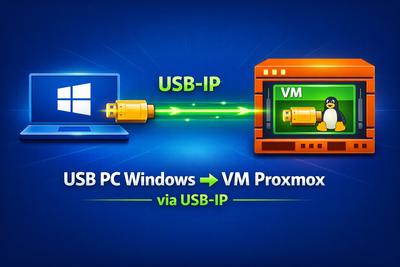
USB d'un PC Windows distant dans une VM Proxmox via USB-IP
Ce tutoriel explique comment partager un périphérique USB connecté à un PC Windows distant avec une machine virtuelle Linux sous Proxmox, en utilisant usbipd-win (serveur Windows) et le client USB/IP Linux.
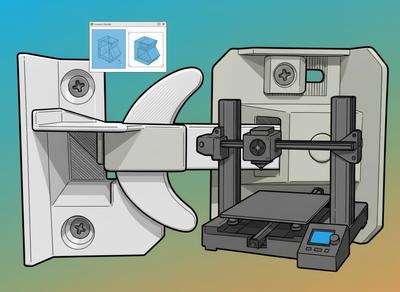
Remplacer un verrou MPM cassé en 3D avec Fusion360
Après de nombreuses années de service, la partie fixe du verrou plastique d’une de mes persiennes s’est cassé en deux, sans doute suite à la fatigue du plastique soumis à de fortes températures lorsqu’il est exposé au soleil, et de fortes contraintes mécaniques lors de la fermeture. Suite à quelques...
Votre tête en modèle STL 3D à partir d’une IRM Cérébrale
À partir de résultats d’une imagerie par résonance magnétique (IRM) il est possible de découvrir le monde merveilleux de l’imagerie médicale, et même d’en créer des modèles 3D.